
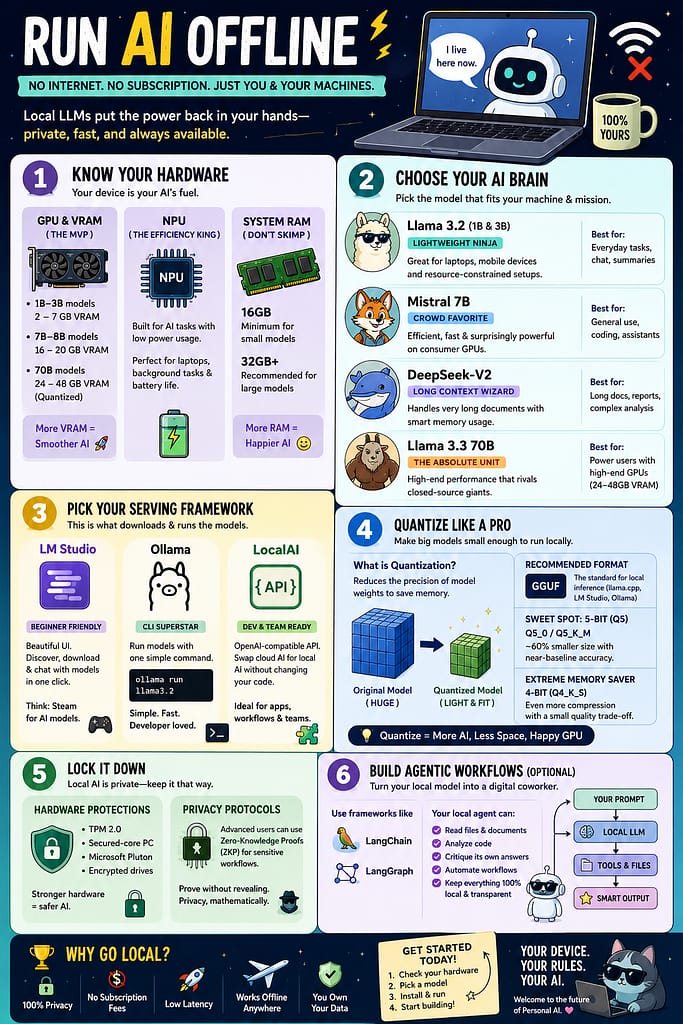
How to Run AI Offline Without Selling Your Soul to the Cloud
There was a time when “using AI” meant sending your thoughts, documents, and questionable late-night ideas into a mysterious cloud somewhere in Silicon Valley. Convenient? Sure. Private? About as private as yelling your passwords into a Starbucks.
But now there’s a better option: running AI directly on your own device.
No internet required. No monthly subscription. No waiting for servers to wake up from their existential crisis.
Welcome to the world of Local LLMs — where your laptop becomes its own tiny AI datacenter.
Why People Are Suddenly Obsessed With Offline AI
Imagine this:
- Your Wi-Fi dies.
- Your cloud AI app stops working.
- Your productivity collapses faster than a folding chair at a barbecue.
Meanwhile, the person using local AI is happily generating code, summarizing PDFs, and asking philosophical questions about pizza toppings… completely offline.
That’s the magic of local AI.
You get:
✅ Privacy
✅ Faster responses
✅ No subscriptions
✅ No “server capacity exceeded” nonsense
✅ The deeply satisfying feeling of owning your tools
It’s basically the difference between:
- renting a bicycle every day…
- versus owning a motorcycle.
Step 1: Check Whether Your Computer Is a Warrior or a Potato
Before you install a giant AI model, you need to know what your hardware can handle.
Because trying to run a 70-billion-parameter AI model on a weak laptop is like trying to tow a yacht with a scooter.
The Most Important Thing: Your GPU
Your GPU (graphics card) is the star of the show.
The key metric here is VRAM — the GPU’s dedicated memory.
Here’s the rough reality:
| Model Size | What It Feels Like | VRAM Needed |
| 1B–3B models | “Cute but useful” | 2–7GB |
| 7B–8B models | The sweet spot | 16–20GB |
| 70B monsters | “I own a workstation and fear electricity bills” | 24–48GB |
Real-Life Example
- MacBook Air? → Small lightweight models.
- Gaming PC with RTX 4070? → Mistral 7B all day.
- RTX 4090 owner? → Congratulations, you are now legally required to say “inference” during conversations.
Wait… What’s an NPU?
Modern laptops now include NPUs (Neural Processing Units).
Think of them as:
Tiny AI engines designed to run machine learning tasks without turning your battery into soup.
They’re fantastic for:
- background AI assistants
- transcription
- local copilots
- energy-efficient tasks
Basically, your laptop is slowly evolving into a sci-fi sidekick.
Step 2: Pick Your AI Brain
Not all AI models are created equal.
Some are brilliant but enormous. Others are tiny but surprisingly clever — like caffeinated raccoons.
Here are the stars of the local AI world:
🦙 Llama 3.2 — The Lightweight Ninja
Perfect for:
- laptops
- portable setups
- people who don’t own a nuclear reactor
The 1B and 3B versions are shockingly capable for their size.
Think:
“Small dog energy with big dog confidence.”
⚡ Mistral 7B — The Crowd Favorite
Mistral became popular because it punches far above its weight.
It’s efficient, fast, and runs beautifully on consumer GPUs.
This is the:
“I want serious AI without selling a kidney” model.
For many people, Mistral is the Goldilocks choice:
- not too big
- not too small
- just right
🧠 DeepSeek-V2 — The Long-Document Wizard
Need to summarize:
- 500-page reports
- giant codebases
- legal documents
- your coworker’s terrifying meeting notes
DeepSeek-V2 is built for long-context tasks while using memory more intelligently.
In AI terms:
It’s the person who actually remembers what happened earlier in the conversation.
Rare talent.
🚀 Llama 3.3 70B — The Absolute Unit
This thing is a beast.
It rivals elite cloud AI systems — but locally.
The downside?
Running it requires hardware powerful enough to:
- heat a small apartment
- dim nearby streetlights
- concern your electricity provider
If you own a 48GB GPU, this is your playground.
Step 3: Install the “Make AI Go Brrr” Software
You need a serving framework — software that downloads and runs models.
Here are the fan favorites:
🎨 LM Studio — The Beginner’s Paradise
If you like buttons, menus, and not typing terminal commands at 2AM:
use LM Studio.
It’s basically:
“Steam for local AI models.”
You can browse models, download them, and chat instantly.
Perfect for beginners.
🖥️ Ollama — The Terminal Wizard’s Choice
Ollama is absurdly simple.
You literally type:
ollama run llama3.2
…and boom.
AI.
No drama. No 47-step setup tutorial narrated by a guy with dubstep music.
Developers love it because it’s fast and elegant.
🔌 LocalAI — For the “I Build Systems” Crowd
This one is for developers and teams.
It acts like an OpenAI-compatible API, meaning you can swap:
- cloud AI
for - local AI
…without rewriting your applications.
That’s incredibly powerful.
It’s basically:
“Corporate rebellion in software form.”
Step 4: Learn the Magic Word — Quantization
Here’s where things get spicy.
AI models are huge.
Like:
“accidentally downloaded 80GB and questioned your life choices” huge.
Quantization compresses them so normal humans can actually run them.
Think of It Like This
Original AI model:
- giant luxury SUV
Quantized model:
- same engine
- lighter body
- slightly fewer cup holders
Still works beautifully.
The Sweet Spot: 5-Bit Quantization
Formats like:
- Q5_0
- Q5_K_M
…offer fantastic quality while massively reducing size.
Most users won’t notice any meaningful quality drop.
But your GPU absolutely will.
It’ll go from:
“I am suffering”
to
“I can do this all day.”
Extremely Low on Memory?
Use 4-bit quantization.
Slightly lower quality.
Massively better compatibility.
Think:
“Budget airline seat, but you still arrive at the destination.”
Step 5: Don’t Forget Security
Running AI locally is private…
…but only if your device itself is secure.
Because if your laptop is compromised, your “private AI” becomes:
“private AI for hackers.”
Not ideal.
Basic Security Checklist
Use:
- TPM 2.0
- Microsoft Pluton
- encrypted drives
- strong passwords
- common sense (the rarest cybersecurity tool)
Advanced Nerd Territory: Zero-Knowledge Proofs
Some advanced AI workflows now use cryptographic tricks like Zero-Knowledge Proofs.
Which sounds fake, but is real.
This allows systems to verify rules without exposing the underlying sensitive data.
Translation:
“Trust me bro” but mathematically proven.
Step 6: Build AI Agents (Optional but Ridiculously Cool)
This is where things evolve from:
“chatbot”
to:
“digital coworker.”
Using tools like:
- LangChain
- LangGraph
…you can create local AI agents that:
- read files
- review code
- analyze documents
- critique their own answers
- automate workflows
Basically:
your own private Jarvis.
Minus the billionaire cave.
Final Thoughts? The Future Is Personal AI
Cloud AI isn’t disappearing anytime soon.
But local AI is changing the game.
Why?
Because people increasingly want:
- ownership
- privacy
- speed
- customization
- freedom from subscriptions
And honestly?
There’s something deeply satisfying about running powerful AI entirely on your own machine.
No internet.
No surveillance.
No middleman.
Just you, your hardware, and a very overqualified autocomplete engine living inside your laptop.
Quick Starter Recommendation
If you’re brand new:
- Install LM Studio
- Download Mistral 7B or Llama 3.2
- Use a Q5 quantized GGUF version
- Start experimenting
Fair warning:
Once you run AI locally for the first time, cloud subscriptions suddenly start feeling very optional.